
How can I use the Neoserra to Neoserra Client Export/Import Module to export a client from one database and import it into another Neoserra database?
OutreachSystems has created an export definition that allows one Neoserra database administrator to export client record(s) in a format that can then be imported into another Neoserra database. The export definition only includes client data, no sessions, training attendance or survey information is included in the record, nor can the bid match search profile be transferred via this process (although OutreachSystems can assist once the client record has been imported). It should also be noted that this process is not designed to transfer client document attachments. The purpose of the export definition is simply to share clients across different Neoserra databases.
The client record that is exported includes all pertinent system-defined fields, but it will not include user-defined fields. Furthermore, if you have customized drop-down selections and added your own drop-down choice, then this also will not be transferred. For example, while the "Organization Type" field is a system-defined field, in the example below, you will see that a user-defined option has been added to this drop-down field:
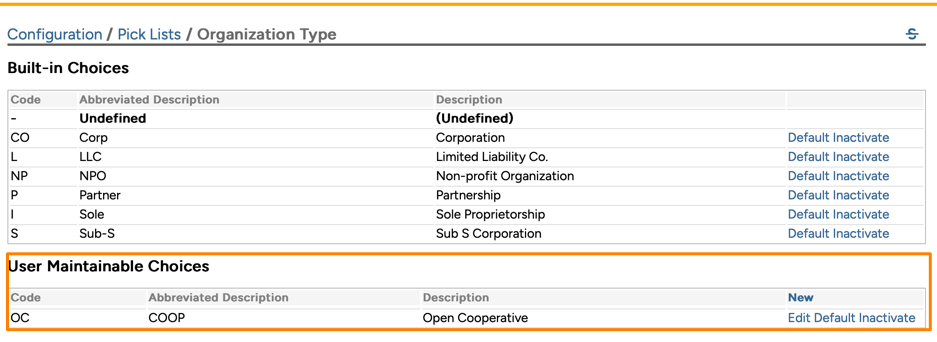
Any client that is exported from one database with this selection, will be imported into the other Neoserra database without a choice. In other words, the client record in the imported database will be marked as "Undefined":
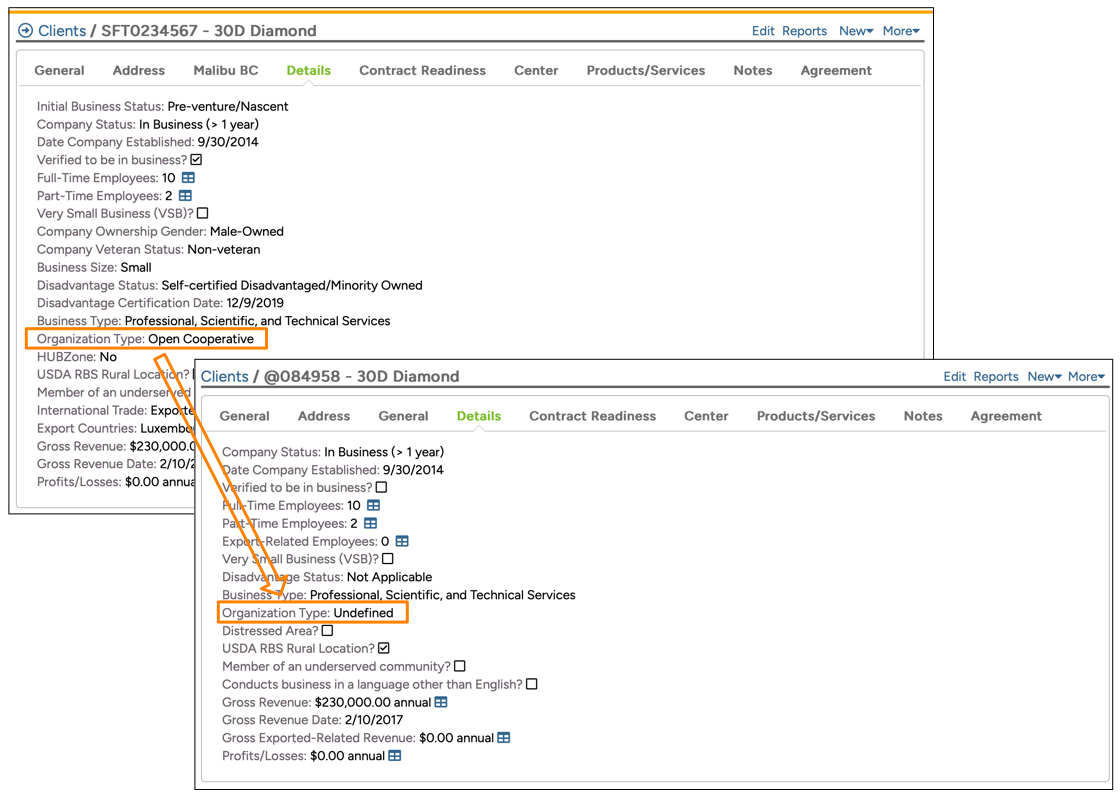
In this FAQ we will discuss the respective steps for the exporting database and we will discuss the step for the importing database. Depending upon whether you are the exporting database or the importing database, you will follow the steps accordingly.
Exporting Database Steps
In order to export client records from your database you will need to create a filter that identifies the clients to be exported, and save that filter. Perhaps you are planning on exporting all clients in a particular county or state, then you might create a filter that looks like this:
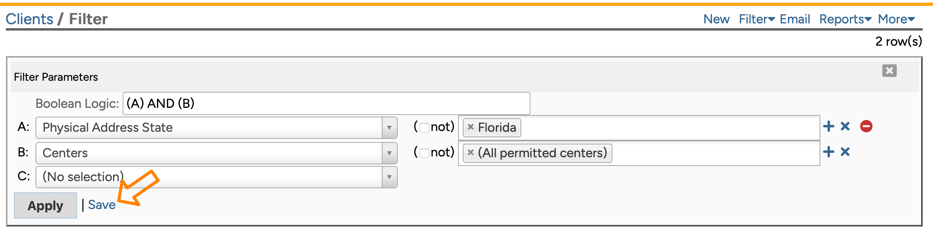
Make sure you decide whether you want to include clients and pre-clients, and whether you want to export clients from all centers in your database. Only you know what filter represents the clients to be exported. If there is no common thread between the clients, then you could create a filter using their client ID, with a comma separating each ID:
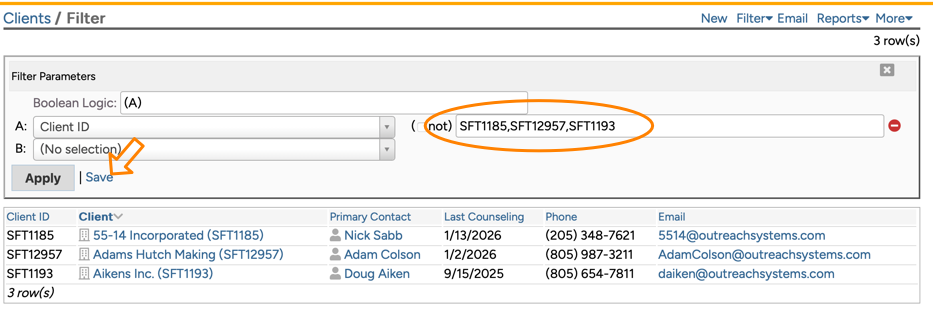
Again, make sure you include all pertinent centers, and verify that the result meets your expectations. Assuming the filter shows all the clients that you want to export, then Save the filter and give the saved filter a name you will recognize later.
Next, you will want to download the latest version of the Neoserra to Neoserra Client Export/Import Module from OutreachSystems. Even if you have previously exported/imported data, it is important to always retrieve the latest version so that you and the importing database are both on the same version. Once you have downloaded the JSON file, you can now go into administrator-mode and go to Administration|Export Module. Here you will be able to import the definition file:

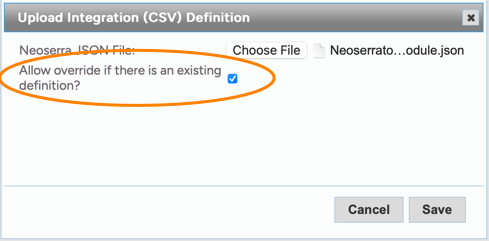
When Neoserra asks you to overwrite a previous version of the definition file, make sure you check the box to ensure that you are going to be working with the latest version of the file:
Click to View the definition and you are ready to create your export file. Click "Export" and select the name of your saved filter in the Source field:
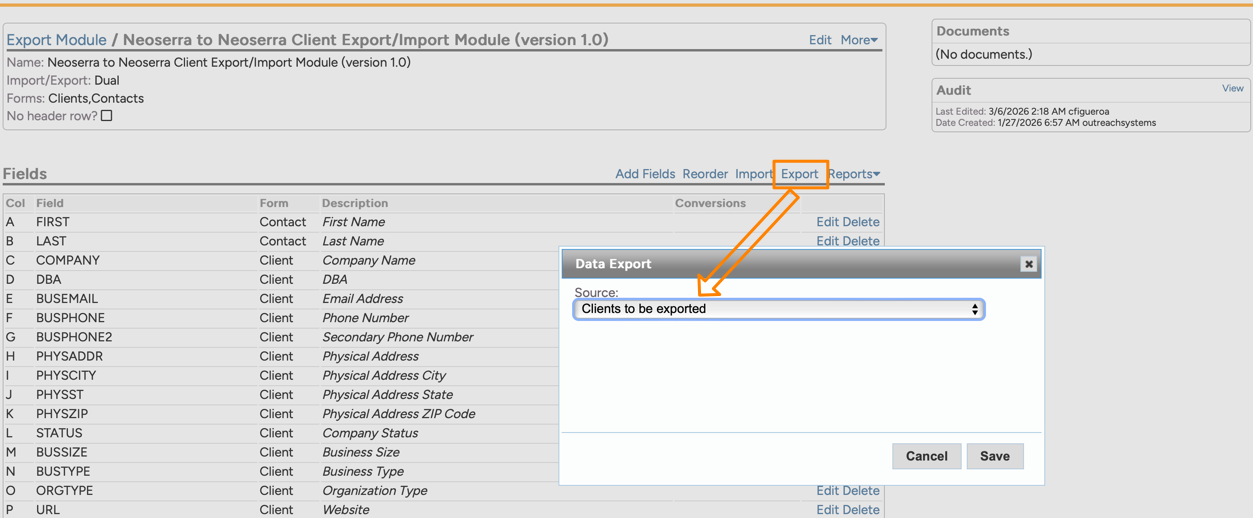
Again, you must have a saved filter in order to create and export! As soon as you click to "Save," a .CSV file will be created and downloaded to your computer. You can certainly view the CSV file, but please do not edit it. You can now email the .CSV file to the recipient at the importing database. Once you have provided them with the .CSV file, you are finished! It is now up to the importing database to import these records. Remember we only created a copy of these client records, the originals still exist in your database. You will need to decide if you want to make these clients inactive in your database since they have been transferred to another Neoserra database.
Importing Database Steps
To start the process, you will want to download the latest version of the Neoserra to Neoserra Client Export/Import Module from OutreachSystems. Even if you have previously exported/imported data, it is important to always retrieve the latest version so that you and the exporting database are both on the same version. Once you have downloaded the JSON file, you can now go into administrator-mode and go to Administration|Export Module. Here you will be able to import the definition file:
When Neoserra asks you to overwrite a previous version of the definition file, make sure you check the box to ensure that you are going to be working with the latest version of the file:
Assuming that the exporting database has provided you with the .CSV file of all clients that they want to export to you, and assuming that you have saved the file on your computer that is accessible from Neoserra, then you are not ready to import the data.
Click "Import" and select the appropriate file and click "Save":
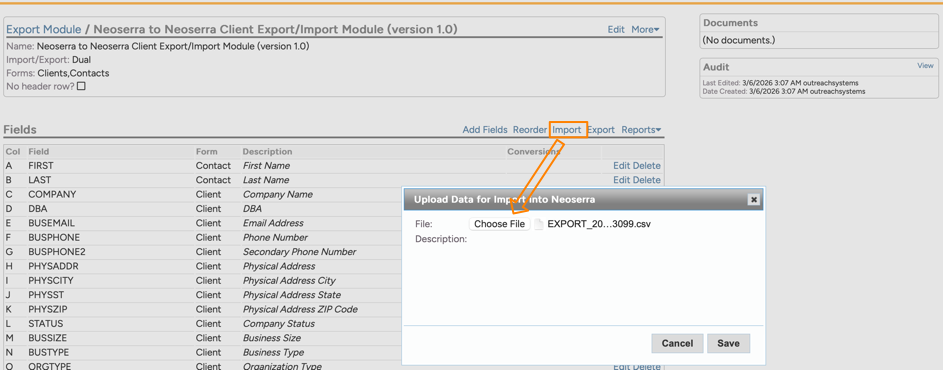
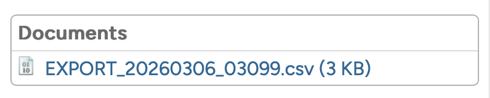
Two things will happen. First of all, a copy of the .CSV file will be saved to your Neoserra database:
And secondly, if you scroll to the bottom of the page, you will see that the data is sitting in a holding pattern, waiting for you to commit it to the database:

Click on the date to see all the records to be imported in your database. This is your opportunity to review the data before it is imported into your system. Make sure you really want to import these clients, because once you click "Commit" the client records will be created in your Neoserra database and you will need to manually delete them from the system:
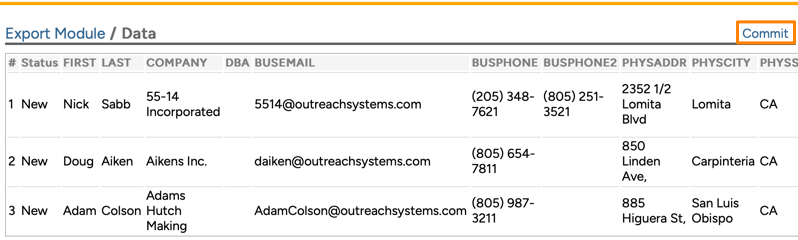
Click "Commit" to add the records to your database. Scroll back down to the bottom of the page to make sure no errors were introduced:

There should never be errors since you are transferring data from one Neoserra database to another, but if the two databases are using different versions of the Neoserra to Neoserra Client Export/Import definition record then errors may be introduced. Always double check that the processed file shows zero (0) errors!
As noted previously, user-defined fields and user-defined pick list choices cannot be exported from one database to another database. Other fields that will not be exported:
- Client Record
- Client ID will not be exported. All records will be imported as pre-clients and can be found under the "New sign-ups received" link on the Neoserra home page as though the records were entered via eCenter Direct. The importing center will need to review the newly created records, and accept them as clients at which time a Client ID will be assigned.
- Subscribe to email will always be set to Yes
- Client Start Date will be set to the date when the record is accepted in the importing database
- Reportable Business Start Impact date will not be exported
- Current Jobs/Sales data will be transferred but not the historical tracking tables
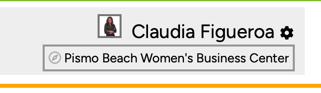
- Center record will be assigned based upon the center selected by the user who is importing the data. Looking at the below screenshot, assuming the user imports the records with this home center selection, then the records will all be imported into the Pismo Beach Women's Business Center:
- Counselor will not be exported
- Funding source will not be exported
- Referral From/Referral To will not be exported
- No agreement text and/or signature will be exported. The importing database will need to request new, updated signatures based upon their own agreement, which will undoubtedly be different from the exporting database.
- Contact Record
- Only primary contacts will be exported
- Subscribe to email will always be set to Yes
- eCenter Direct password will not be exported
Lastly, keep in mind that every Neoserra database is configured differently. Thus, the exporting database may or may not use every field that the importing database uses, or vice versa. Similarly, the importing database may make a field mandatory but the exporting database may not necessarily always use this field. Thus, importing the record may cause an error in the importing database that didn't exist in the exporting database:

If you want to transfer the search profile from one Neoserra database to another Neoserra database then you can contact OutreachSystems after the import process is complete and a new client ID has been assigned to the imported record(s).
Want more? Browse our extensive list of Neoserra FAQs.