
How and why do I get incomplete eCenter Direct sign-up records in Neoserra that are missing the signature?
Neoserra is integrated with the eCenter Direct client portal. Prospective clients can sign up for services on eCenter Direct and upon submitting a completed online application, the designated point of contact will receive an email notification for follow-up, and the record will be available for review in Neoserra.
However, sometimes a client does not complete the entire application. Their application process can be interrupted due to technical issues, or perhaps they simply don't want to provide certain information, or they decide that they are not interested in the services after all. Whatever the reason, depending upon where they stop in the process there may still be a partial contact/client record created in Neoserra, although no email notification will be sent. All six steps outlined below are required for the email message to be triggered.
In this FAQ we are going to discuss the 6 core steps that are part of the eCenter Direct online application and will also explain what happens if the user stops after each successive step.
When prospective clients go to your eCenter Direct site, and click the client sign-up link to start the process they will see the six core steps at the top of the page:
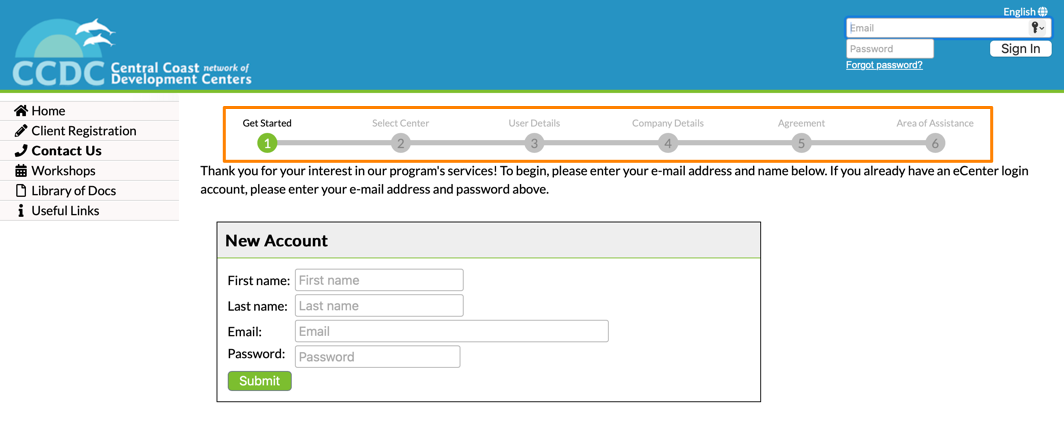
- Step 1. Get Started
- Step 2. Select Center
- Step 3. User Details
- Step 4. Company Details
- Step 5. Agreement
- Step 6. Areas of Assistance
- Optional: Step 7. Survey
A question we often get is: "Can't you force the client to complete the application?" and the simple answer is NO! Clients can close their browser or turn off their computer and just walk away. There is, unfortunately, no way for us to force them to continue the process if they don't want to. We do encourage you to make the online application as easy to complete as possible. Don't add fields to the sign-up process that you don't absolutely need to help the client. Don't make fields mandatory that may dissuade the client from completing the application. Of course, it would be wonderful if every client completed every field, but remember, your counselors can also capture a lot of details during their initial counseling session with the client.
Step 1. Get Started
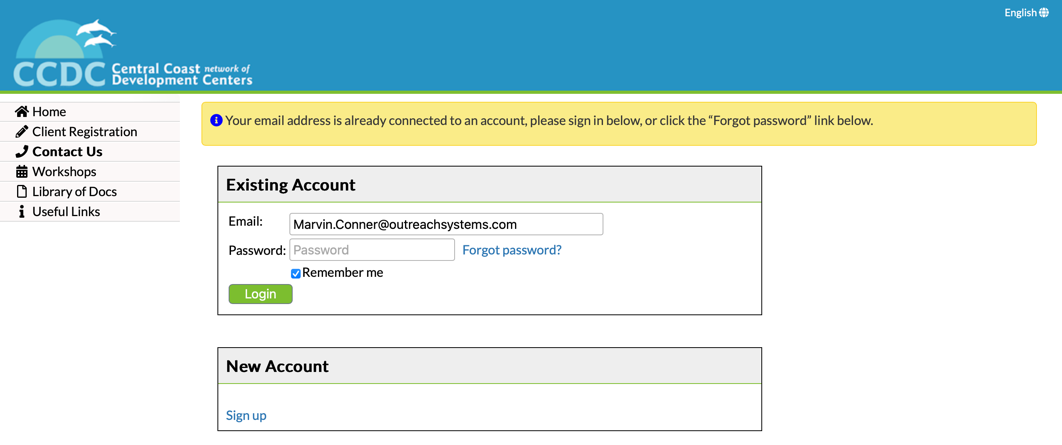
The first step in completing the online application form is to provide the user's name and email address. During this step, eCenter Direct will verify that the email address is unique and does not yet exist in your Neoserra database. If it does exist, then the user will be provided with the following message asking the client to click the "Forgot Password" link:
Assuming the user is new to eCenter Direct; their email address does not yet exist in your database; they complete all the fields on the "Get Started" page; and click submit:
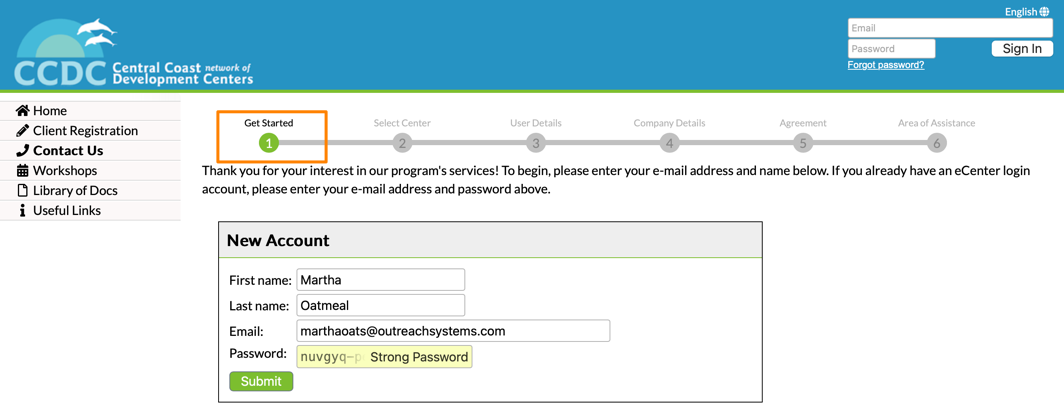
Then, still no record is created yet in Neoserra! While eCenter Direct has captured their name and email address, there is not enough information yet to create a record in Neoserra.
Step 2. Select Center
Continuing on from Step 1: If the client submits their name and email address, then they will come to Step 2, where they will select the center that they want to sign-up with. This step could be skipped if there is only one center in your Neoserra database, or the client is working on a direct link from a particular center.
If the client is on the Select Center page, and they click the "Sign up" button on the Select Center page:
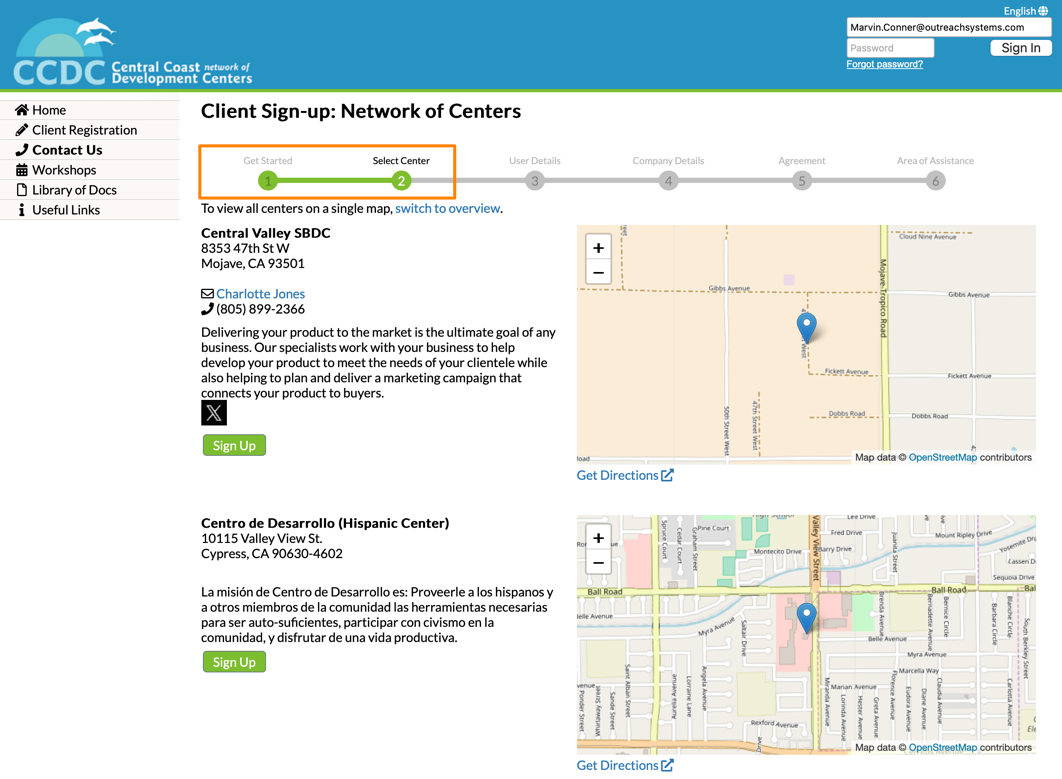
Then, still no record is created yet in Neoserra!
Step 3. User Details
Continuing on from Step 2: The client has selected their service center, as part of Step 3 they will be asked to complete their personal details based upon the requirements configured by the center. Keep in mind that every center can customize the fields that they want to collect on the "User Details" page and on the "Company Details" page as discussed in this FAQ.
Assuming the client completes all the mandatory fields on the Users Details page:
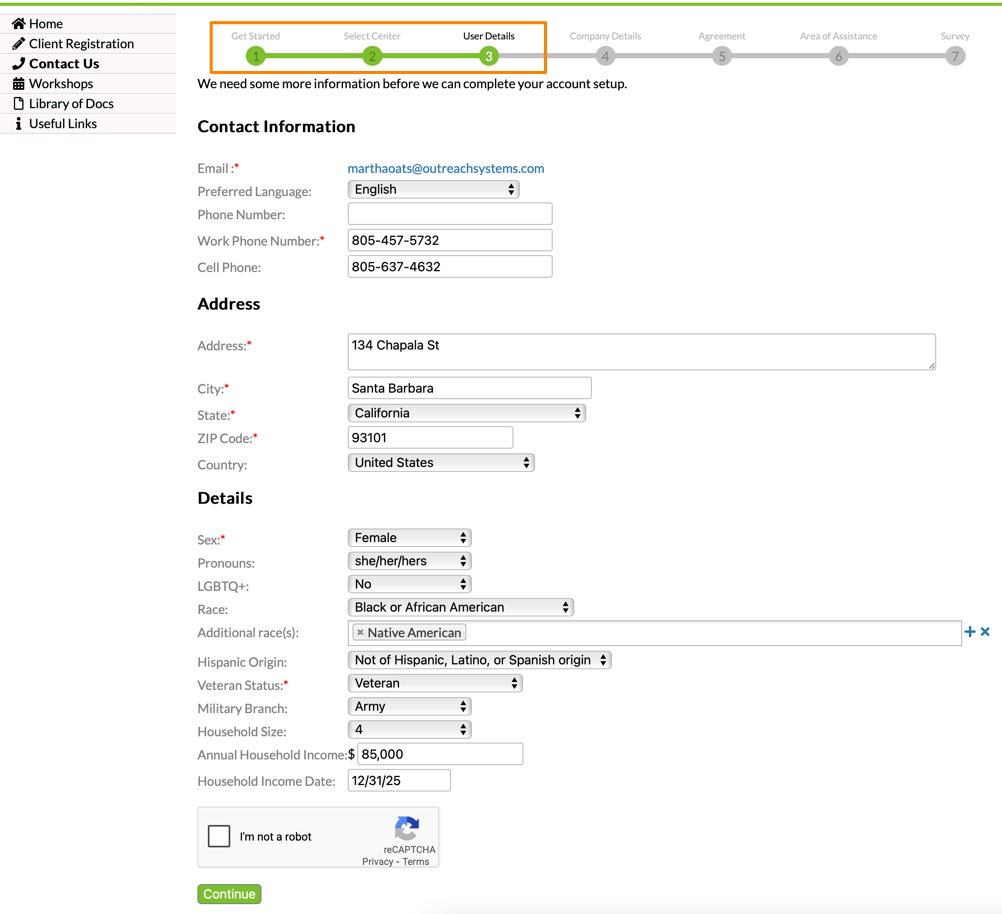
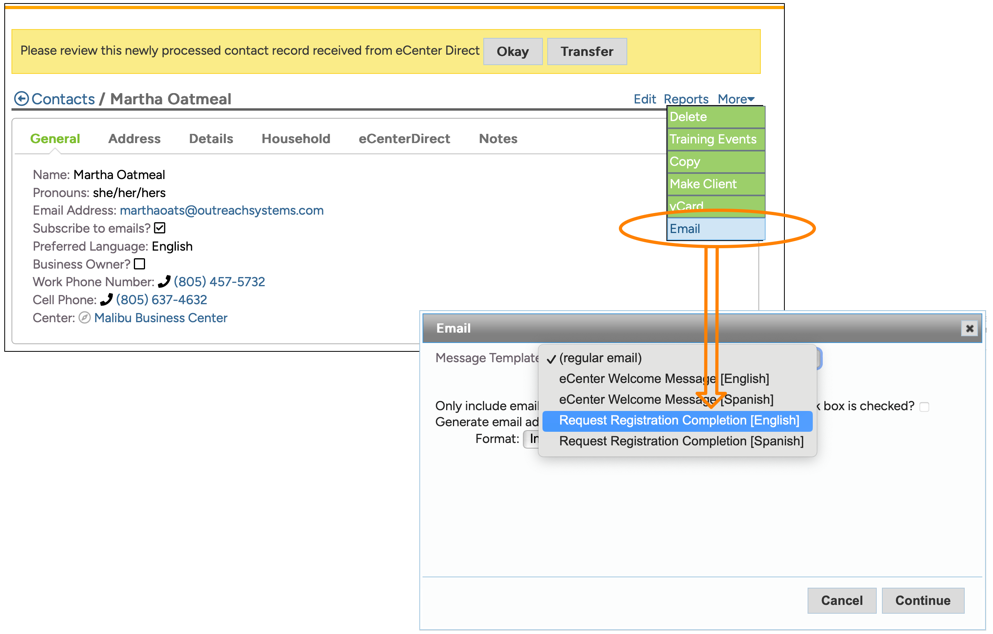
And, they click to Continue, then, and only then, will the contact record be created in Neoserra! No client record will be created yet, and no email will be sent to the center, but the contact record can be found in Neoserra. If the user abandons the sign-up process now, then this contact record found be found in Neoserra either by searching for their name, or you can create a filter to identify all abandoned sign-ups:

Optionally, you can choose to proactively reach out to these new prospective clients and ask them to complete the registration process:
Step 4. Company Details
Assuming, however, that the client simply continues the intake application and they find themselves on the Company Details page where they will indicate whether they are already in business, or not. In the screenshot below, you will see that our new prospective client is not yet in business, and thus there are not a lot of additional details to provide:
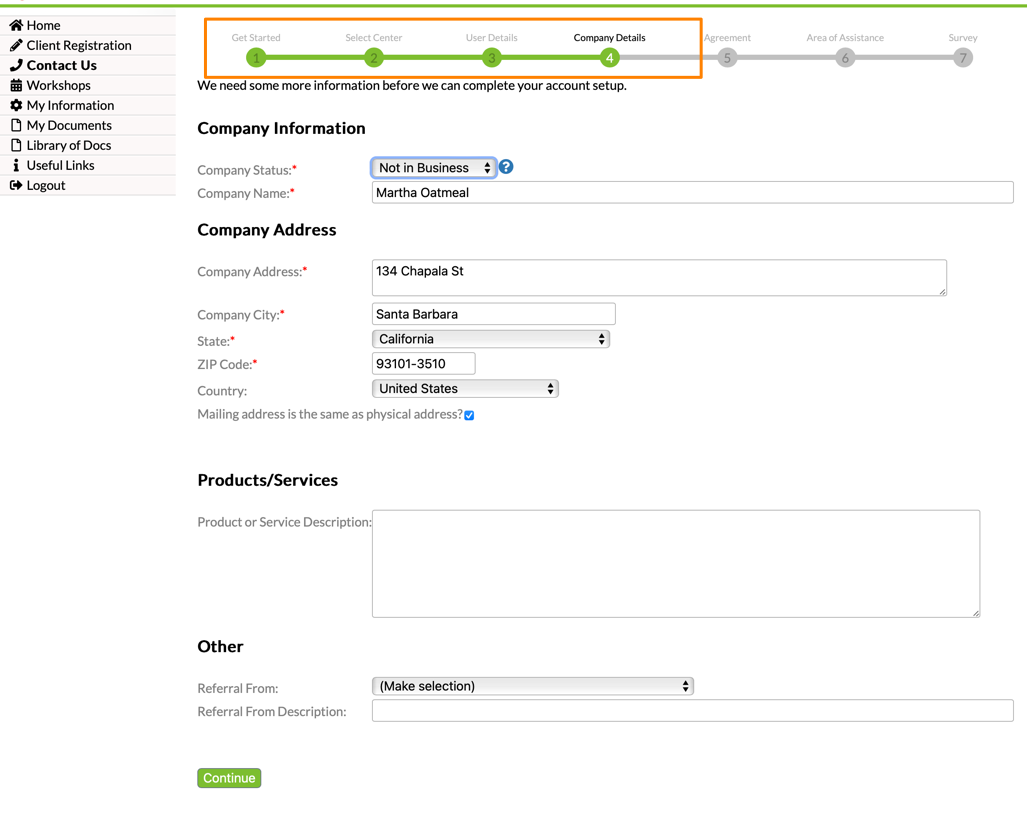
Assuming the user clicks "Continue" on the Company Details page, then, and only then, will the client record be created in Neoserra. The client will now be included on the Neoserra home page within the eCenter "New sign-ups received" tally:
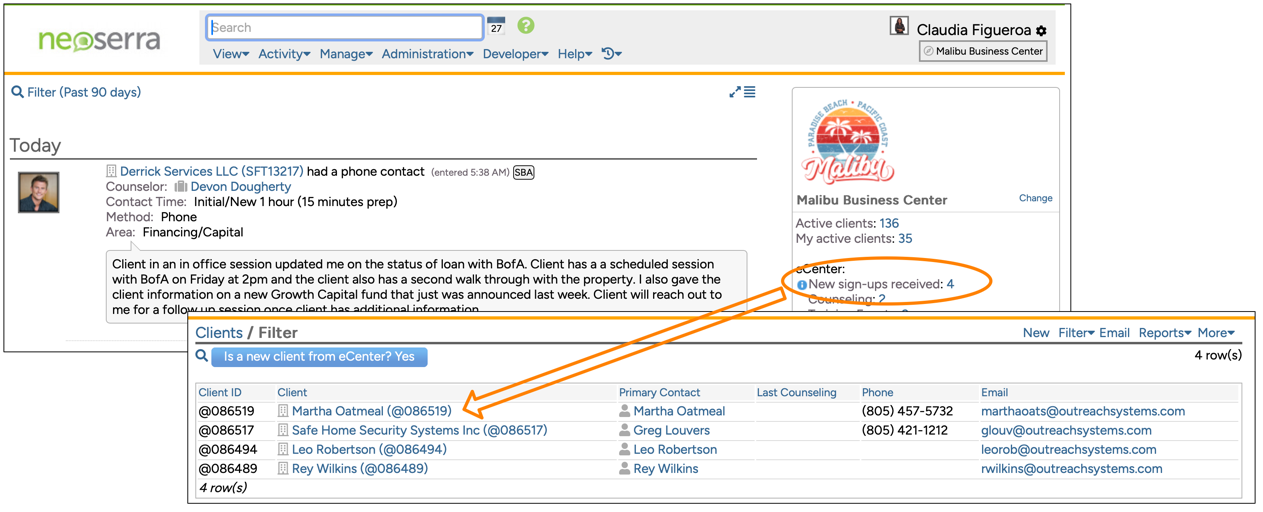
However, NO email will be sent yet to the center since the process is still incomplete! If the client abandons the process at this point then the client record will have been created but the client record will show that the signature is missing:
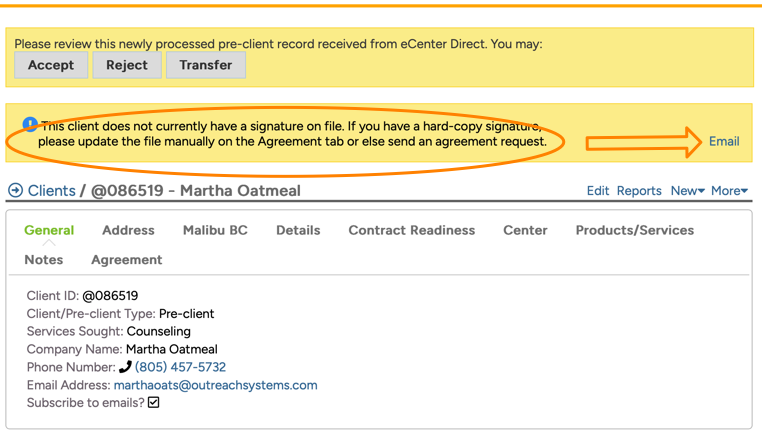
The counselor can elect to click on the email link and request that the client complete the application process.
Step 5. Agreement
Assuming the client continues from the Company Details page, then the next page will present them with your Agreement text:
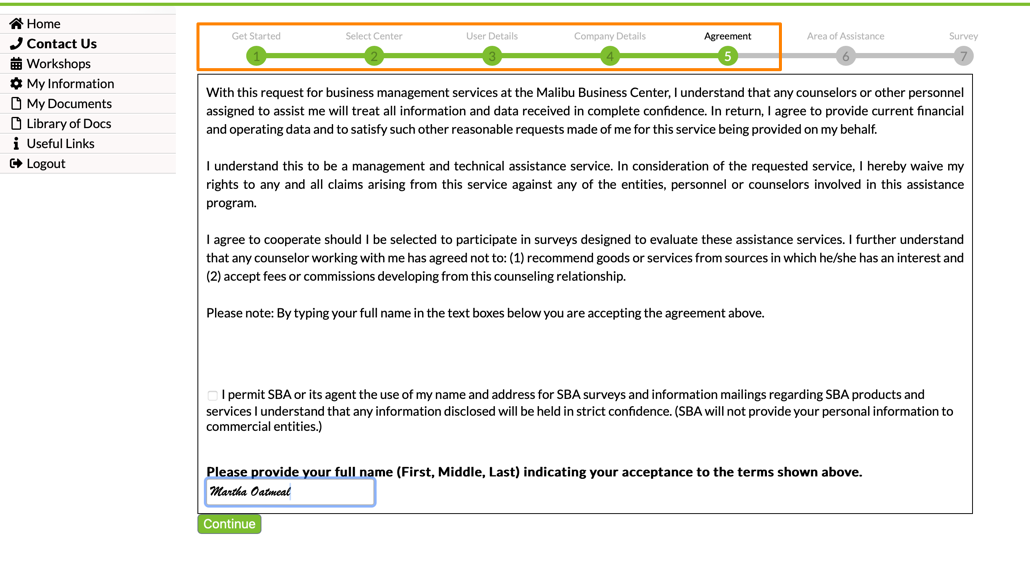
Clicking continue here will bring the prospective client with the last step of the sign-up process. As with the previous step, no email will have been sent to the counselor yet since the process is still incomplete.
Step 6. Areas of Assistance
The last step of the process that kicks off the email message to the center, is the page where the prospective client will ask for specific assistance:
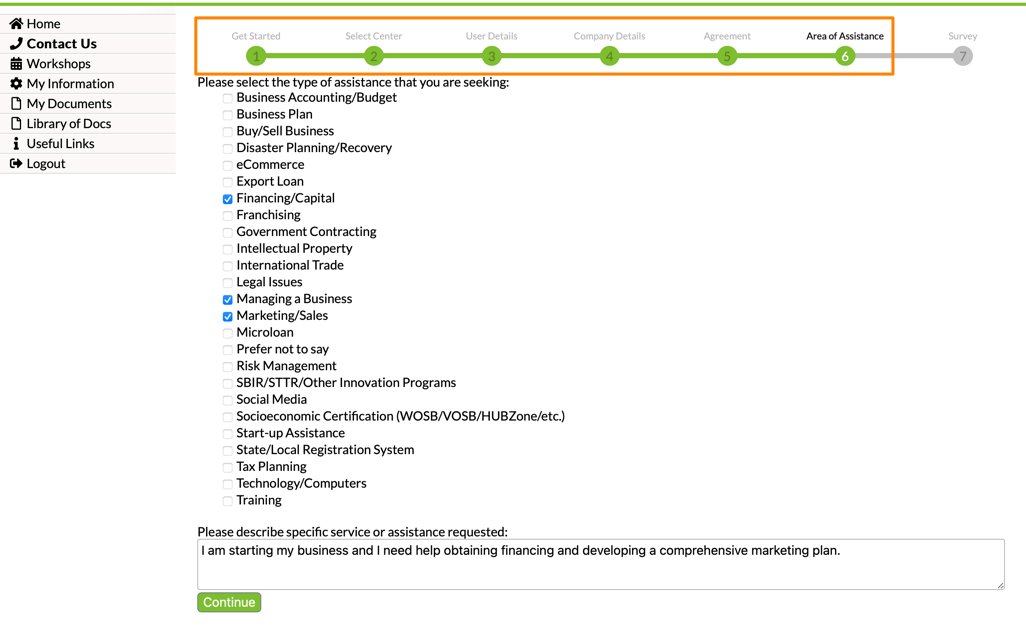
Assuming the client clicks on the areas of assistance and clicks Save then it is at this point that an email message is triggered to the center point of contact!
Optional: Step 7. Survey
A seventh step can be introduced in the client sign-up process at each center's discretion. This seventh step allows for an intake survey to be added to the application process. For example, you may want to add a survey to ask more specific questions about their needs and requirements:
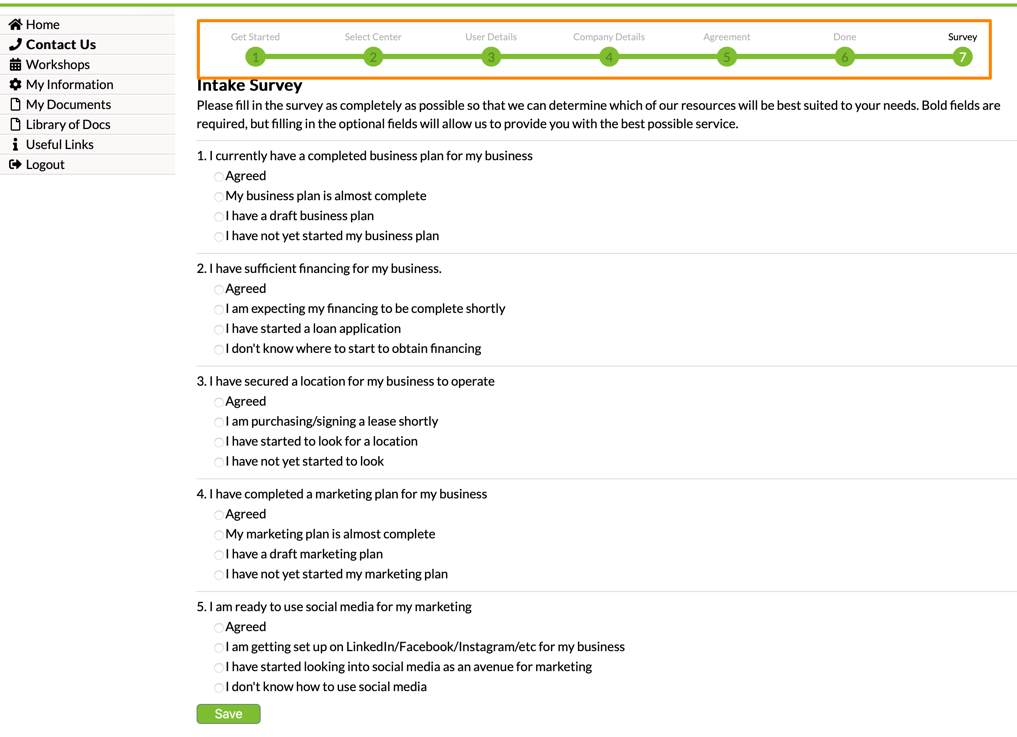
Step 7 is not required for an email to be triggered. The email notification to the center will always be triggered after the 6th step. This added "bonus" step simply allows you to ask some additional, more detailed questions about the client. You can refer to this FAQ to learn about setting up an intake survey.
Want more? Browse our extensive list of Neoserra FAQs.