
How to customize Counseling Area, Additional Area and Additional Assistance, and what is the difference?
If you take a look at the Field Requirements page for counseling sessions, then you will notice that there are three possible fields to identify the nature of a counseling session:

Counseling Area and Additional Areas are really the same field (as denoted by the orange box above). They include the exact same drop down options and they are managed by a single pick list (Counseling Area). The reason to have two fields on the counseling session with the exact same choices is to track the all the topics discussed during the session while identifying the primary area of assistance. For SBA-funded programs, only the primary "Counseling Area" is exported to Nexus, but Neoserra recognizes that many sessions cover multiple topics and the added "Additional Areas" field allows the counselor to identify these additional areas discussed.
Of course, if you only want to track one Counseling Area, then you can uncheck the checkbox next to "Additional Areas" and this will simplify your counseling session interface.
Whereas the "Counseling Area" pick list is used for reporting to SBA and DoD, and thus, is based upon their requirements, the Additional Assistance field is designed to be a user-defined pick list that allows each program to track sub-categories not properly represented by the primary Counseling Areas. While you can use the "Additional Assistance" field in your custom scorecards, the system-defined scorecards do not this field since it it is intended to differ from Neoserra database to Neoserra database. It is generally recommended that your Additional Assistance pick list contain choices not found within your Counseling Area pick list so that it truly represents sub-categories not represented elsewhere.
Again, this field is not system-mandatory, and in most databases this field will be invisible on the counseling session form, especially if you don't have any sub-categories that your want to track. Bottom line, you can turn off (or make invisible) both the "Additional Areas" and "Additional Assistance" fields, but the "Counseling Area" field is always required.
For purposes of this FAQ, we will focus on the "Counseling Area" pick list since it is used for both SBA and DoD reporting, and it is used in all system-defined scorecards. Also, remember that this one pick list controls the choices for both the Counseling Area and Additional Areas fields. Because this one field is used by both SBA and DoD-funded programs, it can be long and overwhelming, and some of the areas may not pertain to your program or to you specifically, as a counselor. For this reason, Neoserra offers three ways to customize this list:
Global Customization
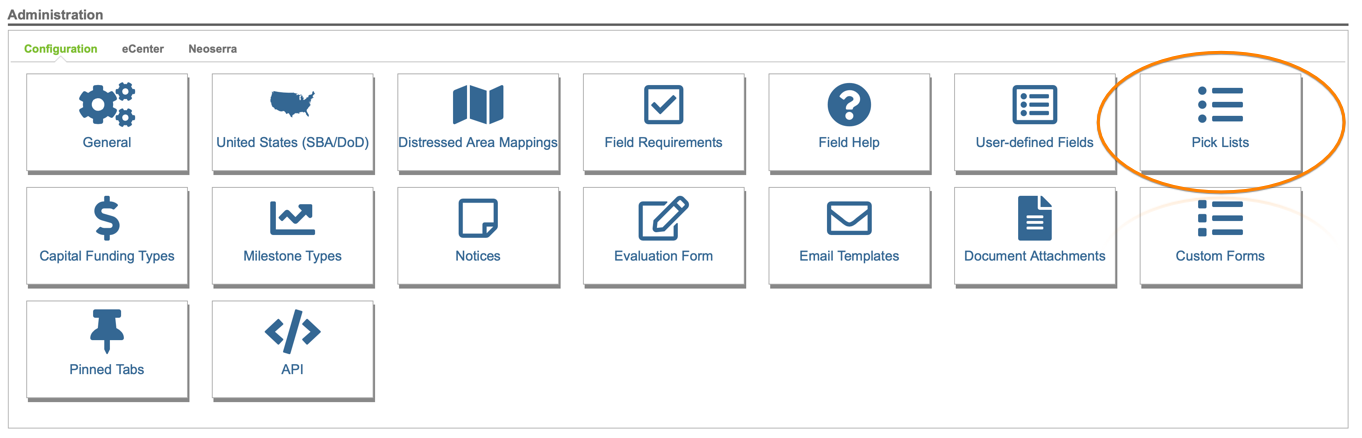
As discussed in this FAQ, your Neoserra database administrator can inactivate system-defined pick list choices that do not pertain to any program in your Neoserra database, and you can add your own custom choices to be part of the Counseling Area drop down field on the counseling session record. Simply select: Administration|Configuration and click on the "Pick List" panel:
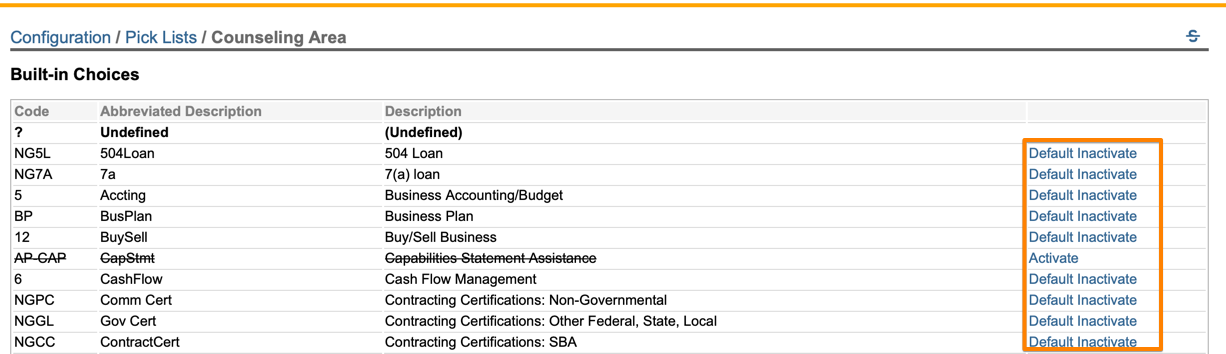
Next, click on the Counseling Area pick list to customize the choices that will be used in your Neoserra and eCenter Direct interfaces. Again, remember that this one pick list is used by both the Counseling Area field and the optional Additional Areas field on the counseling session record. Any choice you inactivate here, will be invisible for all users. Any new custom choice that you add here, will be visible, by default, by all users. To activate/inactivate an area of assistance just click the respective link on the right hand side:
To add a new choice, scroll to the bottom of the page and click "New":

As noted above, all changes made to this interface will be effective, by default, for all users across both applications: Neoserra and eCenter Direct. However, individual users and each center can customize the specific choices, as documented below.
Counselor Specific Customization
If your Neoserra database hosts multiple programs, from SBDC programs to APEX Accelerator programs to WBC programs and perhaps even some non-federal economic development programs, then it is very possible that not every counselor offers all the counseling areas provided by the different programs. For this reason, Neoserra allows each Neoserra user to limit the Counseling Area drop down field to just those areas of service provided by them.
This counselor customization is done under your Personal Preferences.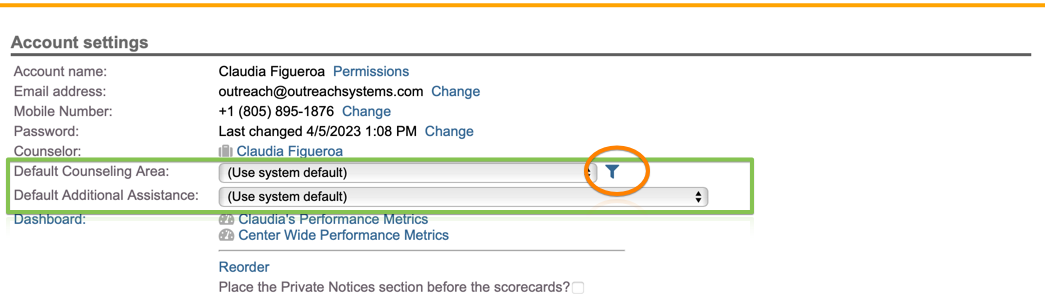
The filter icon has been circled in orange above. Click on this icon to hide those areas of counseling not specifically offered by you. Simply check the box in the left hand margin if a particular area of counseling is offered by you, and uncheck the box if this is not a service that you anticipate providing to your clients:

Those areas UNchecked by you will not appear in the Counseling Area drop down on your counseling session interface.
Center Customization
In addition to each counselor being able to customize this drop down list, each center can also customize the list of services offered to their clients on eCenter Direct. As part of the eCenter Direct intake process, clients will be asked what services they are seeking:
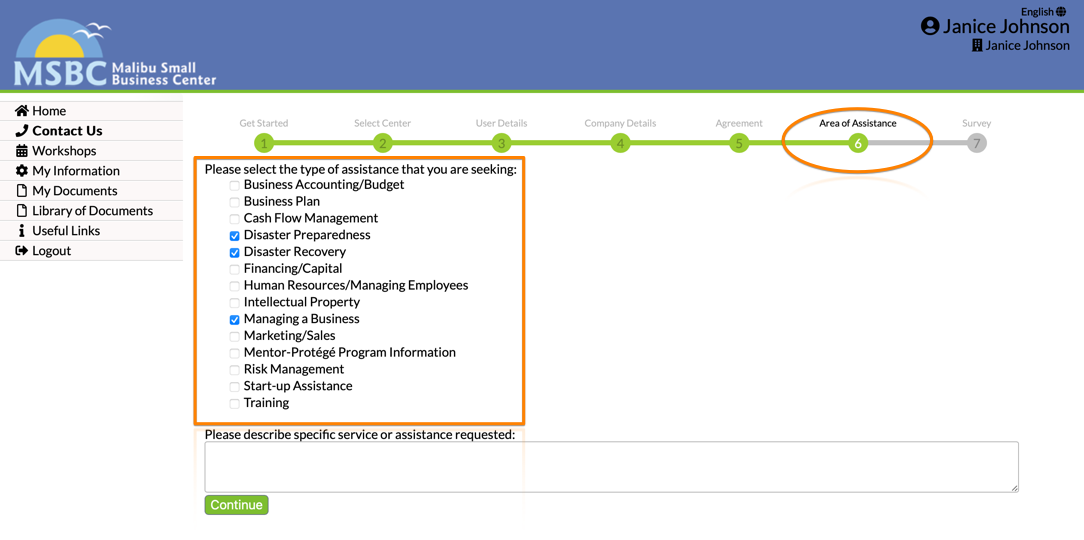
But again, if your Neoserra database consists of multiple programs, then not every center will necessarily provide all areas of assistance. For this reason, you can customize the list of services on a center-by-center basis. Simply go to View|Centers and select your center from the list. Assuming your center has a Status of "Public" (meaning it participates on eCenter Direct) then you can click to Edit your center record and scroll almost to the bottom and edit the "Sign-up Areas of Assistance" field:
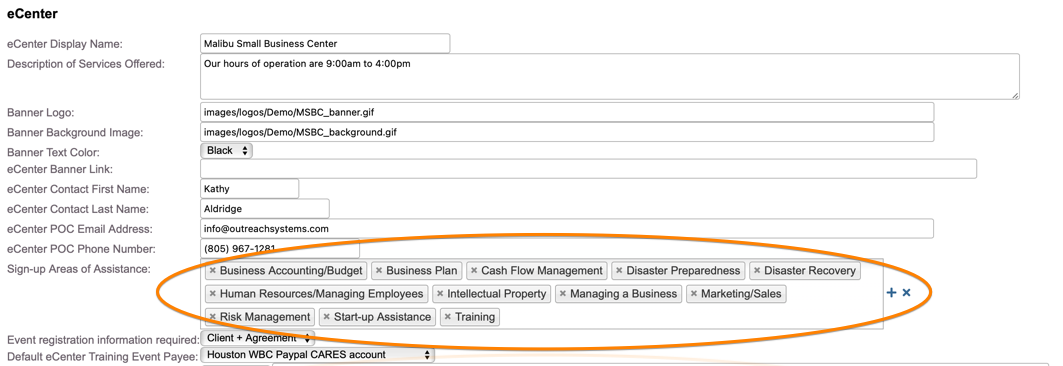
Editing this field will ONLY affect the areas of assistance listed on eCenter Direct.
Want more? Browse our extensive list of Neoserra FAQs.